
How to Turn On Radio in WARDOGS: Keybinds and Voice
How to use the radio in WARDOGS: enable voice chat in Audio settings, hold J for squad, K for proximity voice, and press F for Builder's Radio.
To turn on radio in WARDOGS: For music, walk to the Builder's Radio and press F (stations 1–6). For voice chat, enable Voice Chat in Audio settings, then hold J for Squad Voice or K for Proximity Voice.
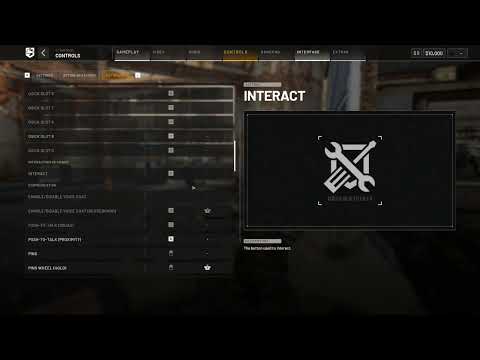
Players search for “how to turn on the radio in WARDOGS” and find three different systems depending on what they mean. This guide covers all three - the music-playing Builder’s Radio, the built-in voice chat, and the JTRS tactical radio - plus why the antenna towers on the map are not radios at all.
Which “Radio” Do You Mean?
| What you’re after | How to turn it on | Section |
|---|---|---|
| Music at your FOB (Builder’s Radio) | Walk up to it, press F to toggle power, 1-6 to change stations | Builder’s Radio |
| Talk to your squad (voice chat) | Hold J for Squad, K for Proximity | Voice Chat |
| Tactical comms network (JTRS) | Nothing to toggle - your role tunes you automatically | JTRS Tactical Radio |
| Antenna towers on the map | Not a radio - they are capture objectives | Towers vs Radios |
Builder’s Radio
The Builder’s Radio is a utility buildable issued to the Support role. Its job is to play music around your Forward Operating Base. It has no combat function - treat it as a morale object you park somewhere your squad actually stands around, like next to a repair or refuel point.
How to Build It
- Equip a hammer - any hammer works; the radio counts as a small buildable.
- Right-click to open the Buildables radial menu and select Builder’s Radio.
- Aim at the ground inside a FOB build zone. The blueprint won’t settle outside that radius, so if the hologram refuses to place, walk back toward the base.
- Confirm placement - the blueprint drops as a wireframe with yellow X marks, and 7 build supplies come off your total.
- Hammer the yellow X marks until the progress bar reads 100%. Completion pops two score rewards for the whole team.
Once the build finishes, the radio is live and interactable for anyone in the base.
Controls & Music Stations
| Key | Action |
|---|---|
| F | Toggle the radio on / off |
| 1-6 | Jump straight to a station |
| Key | Station |
|---|---|
| 1 | Classical |
| 2 | Dance |
| 3 | Electronic Chill |
| 4 | Rap |
| 5 | Rock |
| 6 | Pop-Punk |
The station choice is shared, not personal - whoever touches it last sets the soundtrack for everyone in earshot. At 7 supplies a unit, replacing one is cheap enough that it is worth putting a radio wherever your team respawns and rearms, rather than tucked away in a corner nobody walks through.
Voice Chat
Voice chat is built into the game client - there is no inventory radio item to equip. Squad Chat is private to your faction, while Proximity Chat can be heard by nearby enemies.
| Voice Channel | Default Key | Who Hears You | Tactical Use |
|---|---|---|---|
| Squad Voice | J (hold) | Entire 4-player squad (encrypted) | Flank plans, tank coordinates, ammo requests |
| Local Proximity Voice | K (hold) | All nearby players & enemies | Direct callouts, doorway breach coordination |
| VOIP Reset Toggle | TAB + U | Self (audio engine reload) | Quick-fix when the mic stops transmitting mid-match |
Combat warning: enemies can hear your Proximity Voice. If you call out “I’m reloading” or “planting C4 on the back door” over Proximity, defenders behind the wall will hear your voice direction and pre-fire your position.
Voice Setup in Settings
- Press ESC during a match and open AUDIO (the category row sits between VIDEO and CONTROLS).
- Under DEVICE SETTINGS, pick your headset or microphone explicitly in INPUT DEVICE and OUTPUT DEVICE instead of leaving the game to choose for you.
- Scroll to the VOICE CHAT block and check COMMUNICATION STATUS - this line tells you whether the game actually connected to the voice service. If it is not connected, no keybind will help.
- Switch on VOICE CHAT, then SQUAD VOICE CHAT and PROXIMITY VOICE CHAT. The master toggle gates both channels, so all three need to be on if you want to hear and be heard everywhere.
- Set MICROPHONE VOLUME to a level you are happy with and use TEST MICROPHONE to confirm input is registering. If the meter stays flat here, the problem is your device or Windows, not the game’s toggles.
- Under CONTROLS → KEYBINDS → COMMUNICATION, verify your Push-to-Talk keys. Both binds can be rebound here if J and K clash with how you play.
Quick-Fix Checklist (Mic Not Working)
- TAB + U reset: hold TAB to open the scoreboard, press U to disable VoIP, wait 3 seconds, press U again to reconnect to the voice server.
- Windows exclusive mode: Sound Settings → your mic → Properties → Advanced → uncheck “Allow applications to take exclusive control of this device”.
- Steam voice alignment: Steam Overlay → Settings → Voice → confirm the same mic device.
- Privacy permission: Windows Settings → Privacy & Security → Microphone → allow desktop apps to access your mic.
- USB re-seat: reconnect USB DACs/headsets; if issues persist after step 1, restart the game client.
Vehicles
Crew members in vehicles like the 6-seater APC, the Littlebird Scout, or the Huey Utility Helicopter use Squad Chat for coordination, or Proximity Chat which broadcasts locally inside and immediately outside the vehicle. Engine noise is loud - raise Voice Receive Volume to 100% and lower SFX so callouts stay clear during artillery fire.
JTRS Tactical Radio
The JTRS is the game’s tactical radio network. It has nine frequencies - COMMAND, AIR, ARTILLERY, LOGISTICS, MEDICAL, RECON and the rest. Your in-game role tunes you to the matching one automatically; you can monitor as many frequencies as you like and transmit on whichever you are keyed to.
You don’t toggle the JTRS on or off, and there is no item to equip - it follows your role. Squad leaders coordinate on command nets, forward observers key artillery, medics monitor the medical channel, and so on. Stay on your role’s frequency and keep one ear on the channels your squad relies on.
Note: the JTRS frequency plan is documented by the community (e.g. WARDOGCOMMS); the in-game client assigns your main frequency from your role.
Towers Are Capture Objectives
The prominent broadcast antennas and radio masts across Bakurani and Ozeti are Control Zone objective locations, not communication equipment:
- Observation Mast Towers: climb the ladders for elevated sniper vantage points and decipher terminal capture codes.
- Terminal Decryption: capturing a radio tower objective shifts the 2x2 km Hot Zone timer; it does not change your squad’s voice channels.
If you searched “how to turn on the radio” because you wanted music or comms, use the Builder’s Radio (F) or voice chat (J/K) above. If you wanted to capture a tower, that’s a different objective entirely - see the tower capture codes guide.
Sources
Voice-chat setup steps, default keys (J / K / U) and the Audio menu path are compiled from All Things How’s WARDOGS Voice Chat: How to Turn It On and Set Push-to-Talk (Sep 2026) and cross-checked against its How to Ping and Mark Enemies keybind table; the ShowGamer keyboard and mouse settings guide (Sep 2026) confirms the same default binds. Builder’s Radio mechanics and music stations are community-documented; the in-game client is the source of truth if a future patch rebinds anything.
Related Guides & Tools
- WARDOGS Interactive Map – Control Zone, Hot Zone and battlefield economy basics.
- WARDOGS PC Performance & Settings Guide – High-FPS optimization and low-spec GPU benchmarks.
- Figures on this page reflect the September 2026 Early Access build for WARDOGS; where BULKHEAD has not published data, it is marked as unpublished.
- Cross-verified against official BULKHEAD dev communications and Steam Community playtest records.
Frequently Asked Questions
How do I turn on the radio in WARDOGS?
How do I build the Builder's Radio?
How many music stations does the Builder's Radio play?
Can enemy players hear proximity voice chat in WARDOGS?
What is the JTRS tactical radio in WARDOGS?
How do I fix voice chat not working or mic cutting out in WARDOGS?
How does voice communication work inside vehicles like the APC or Huey?
Companion Guide Network
View All Guides →How To Play
The confirmed loop step by step: 100 players, 3 factions, the 2x2km Control Zone, and the persistent cash economy.
Launch & PriceRelease Date, Price & Platforms
Confirmed September 10, 2026 Early Access launch, $39.99 base price, Windows only, plus console and Steam Deck status.
WeaponsWeapons Guide
Officially named Valkyra & Lonestar arsenal, the confirmed purchase economy, and why no tier list exists without official stats.